• administration
  • migration
  • powershell
  • contact
  • DE
info@firstattribute.com
by FirstAttribute
Active Directory FAQActive Directory FAQ
  • administration
  • migration
  • powershell
  • contact
  • DE

AD Attribute Editor tab missing – Make search visible

Apr 24, 2019 (Last Update) | Posted by Hannes Hayashi | Administration |


To quickly change an attribute of a user, I assume everyone has used the search function of the „Active Directory Users and Computers”- console. People who use are probably annoyed like me, that the Attribute Editor tab can’t be found when opening a user via search.:
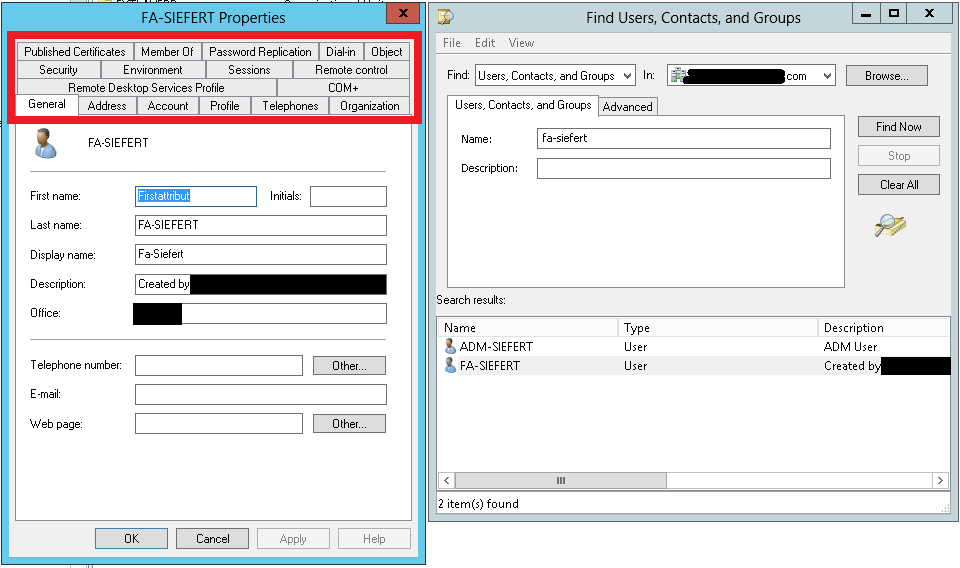
ADUC-attribute-editor Normally you would submit to this ‘feature‘ and manually browse to the user-object. However, there is a small but very effective trick to get (almost) directly from the search to the editor!


Requirements to display the Attribute Editor

The „Advanced Features“ have to be activated in the “Active Directory Users and Computers” console. Without this, the Attribute Editor cannot be displayed!
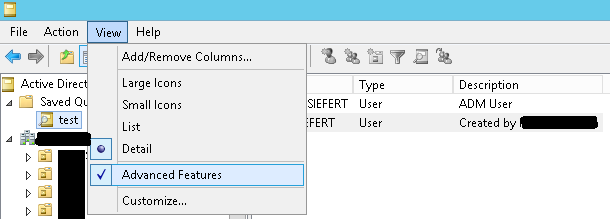
ADUC-attribute-editor-advance-features


Display Attribute Editor tab for the Search

First, you open the “Member Of“ tab of the user-object which you want to edit and then open one of the groups:
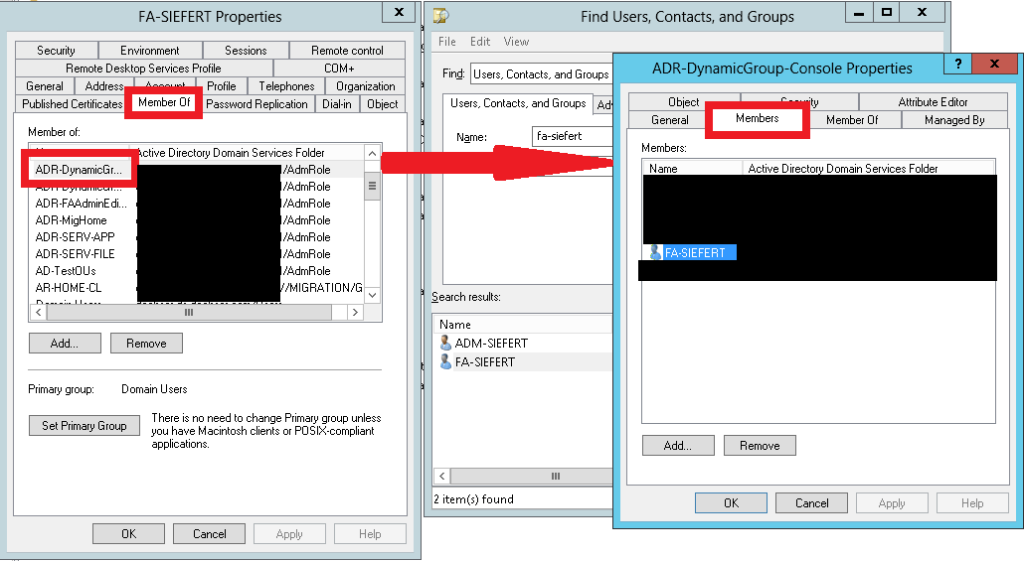
ADUC-attribute-editor-members-


IMPORTANT: Before selecting our user again, we have to close the user-window (left in the picture)!

Now we reopen our original user via the “Member“ tab of the group:
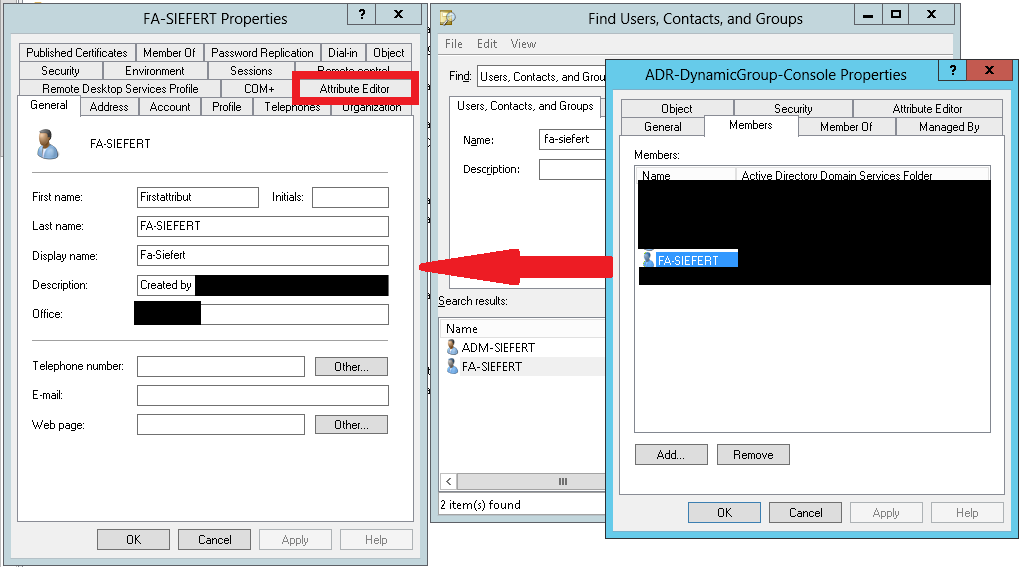
ADUC-attribute-editor-dynamic-group


And then the Attribute Editor is displayed at our user without having to browse to the object!

You can also create a custom query to get the same effect:
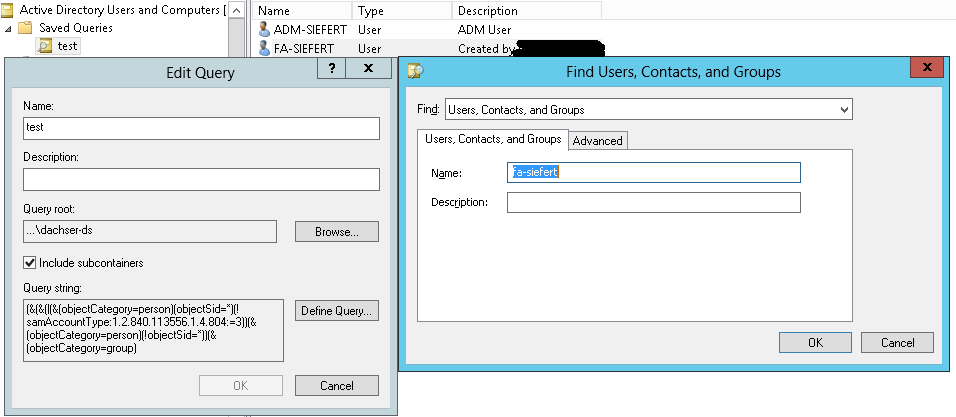
ADUC-attribute-editor-edit-query

 Note: The window visible in the screenshot of the ADR-DynamicGroup-console belongs to dynamic groups in Active Directory, created with DynamicGroup.



FirstAttribute AG

FirstAttribute AG – Microsoft Consulting Partner for Migration and Active Directory

AD Consulting | AD Migration


Did this help you? Share it or leave a comment:
  • Tweet
  • Facebook
  • Mail
Article created: 14.10.2014
Tags: Attribute EditorUsers and Computers
12

26 Comments

Leave your reply.
  • Elias
    · Reply

    January 8, 2015 at 5:44 PM

    Gracias amigo por la solución tan simple

  • Keith L
    · Reply

    March 11, 2015 at 5:35 PM

    This allowed me to make the modifications i needed. Coming from AD 2003 this is a stupid thing that we need to do to get to this section.

    Thanks for the guide sir.

    • CanIGetAWitness
      · Reply

      October 24, 2017 at 7:07 PM

      Amen, bro!

  • roger
    · Reply

    June 12, 2015 at 10:43 AM

    you can see the Attribute Editor tab by using the Query instead of the Find option, (don’t waste your time with the silly and misleading steps of clicking user within “member of” tab! )

  • Viento
    · Reply

    August 27, 2015 at 4:25 PM

    Thank you! I dont like deleting the querys all the time!

  • Will
    · Reply

    October 25, 2015 at 11:20 PM

    Perfect! THANK YOU!!!!

  • Imesha
    · Reply

    February 7, 2017 at 4:09 AM

    Also you can go to the OU which the user is and then go to user properties. That’s works as well.

  • brian
    · Reply

    July 13, 2017 at 5:05 PM

    Thanks, good tip.

  • Durelle
    · Reply

    July 27, 2017 at 6:39 PM

    Thanks! It’s a great tip.

  • jose
    · Reply

    August 28, 2017 at 11:17 PM

    Grcias, tengo a usuarios en diferentes ou, y ya estaba cansado de buscarlos de una forma cavernicola.

  • Raj
    · Reply

    September 26, 2017 at 6:21 AM

    You are a life saver. Thank you, it does the job

  • Nemanja
    · Reply

    November 10, 2017 at 1:44 PM

    Thank you!

  • Triet
    · Reply

    July 17, 2018 at 6:00 AM

    It works for me. Thank you.

  • Francesc
    · Reply

    July 30, 2018 at 6:54 AM

    Thank you very much for sharing!

  • Babek
    · Reply

    December 10, 2018 at 8:06 AM

    Thanks man! i am new at windows server,you helped me a lot !

  • Steve B
    · Reply

    January 16, 2019 at 11:10 PM

    If you know the path to the object in question, traverse ADUC to the object and right-click it from there. You should have visibility to the editor there. Long/Short … without jumping through hoops, you can’t view object attributes unless you are inspecting the object directly (from their OU/Container) – not via a Find.

    More to the point however, why even open ADUC … this might be a good time to use PS and take advantage of the flexibility it offers: (one example) get-aduser username -properties * | select *

    • Matthias Rudolph
      · Reply

      January 17, 2019 at 8:42 AM

      Hi Steve, Thanks for sharing – this is another way. Just keep in mind that the PowerShell command gives you all (200+?) attributes

    • Clyde
      · Reply

      August 25, 2022 at 4:38 AM

      Thank you! Exactly the information I was missing.

  • Carlos
    · Reply

    April 26, 2019 at 7:09 PM

    How I never think about this workaround? omg!! Thank you so much

  • Jeff
    · Reply

    July 16, 2019 at 4:36 PM

    A few people have pointed out that you can see the Attributes tab if you browse to the object instead of using the search function.

    These people have missed the fact that this is practically the whole point of the article! i.e. not that you can see the Attributes tab if you browse, but that it’s annoying that you CAN’T see the attributes tab if you search for the object!

    If you’re managing a large (or even a not-so-large) AD then browsing to an object can be time consuming if you’re not sure where the object is…hence Microsoft have included the search function, hence it’s then frustrating to find that the Attributes tab isn’t visible so you then have to come out of the search once you’ve found the location of the object in order to see the Attributes tab which really ought to be visible after running the search!

    (Aaaaand breathe…)

  • Javier
    · Reply

    August 12, 2019 at 7:57 PM

    Te quedó muy bueno.

  • Rick Better
    · Reply

    January 10, 2022 at 2:12 PM

    This is really handy,
    i work on an AD that has every OU exceed limit viewable filled with 30000 to 60000 objects
    manually selecting an object is out of the question

    creating a filter every time is what i had to do before reading this!
    ThX

  • Bob Tannehill
    · Reply

    January 27, 2022 at 10:51 PM

    Great find! I’ve been working with AD for years and never noticed this 🙂

  • AD User
    · Reply

    May 25, 2022 at 10:03 PM

    It’s easier going to organization tab and properties of manager, then organization and double clicking user. managers typically have to look through than group memberships…at least in large enterprise.

  • ruben valdez
    · Reply

    July 4, 2022 at 8:23 PM

    excellent cheat,,,,

    Add
    Set-ADUser -Identity “xx12345” -Add @{msExchAssistantName=”Administrative Assistants Name (xx12345)”}
    Set-ADUser -Identity “xx12345” -Add @{telephoneAssistant=”+1 (XXX) XXX-XXXX”}
    Replace
    Set-ADUser -Identity “xx12345” -Replace @{msExchAssistantName= ” Administrative Assistants Name (xx12345)”}
    Set-ADUser -Identity “xx12345” -Replace @{telephoneAssistant=”+1 (XXX) XXX-XXXX”}
    Remove
    Set-ADUser -identity “xx12345” -Clear msExchAssistantName
    Set-ADUser -identity “xx12345” -Clear telephoneAssistant

  • Brasci
    · Reply

    July 27, 2022 at 11:43 AM

    Thanks a lot helped me out!

Leave a Reply

<p>Your email is safe with us.<br/>Information about our <a href="https://activedirectoryfaq.com/contact-us/">data protection policies</a></p>
Cancel Reply

FirstAttribute

Links

  • FirstAttribute – Consulting
  • Contact details

Social Icons Widget

Recent Articles

  • Azure AD Custom Security Attributes enable flexible authorization structures
  • Authentication for MS Teams in hybrid networks
  • Manage file permissions in MS Teams and SharePoint Online – This is how it works
  • Azure AD Connect and Azure AD Connect cloud sync
  • Install Azure AD Connect
  • Avoid password generator adjustments after policy change
  • Avoid strings in passwords with Azure AD
  • Manager can update membership list with PowerShell
  • Define Teams naming policies
  • Sending an E-mail to Members of an AD Group

Dynamic AD Groups

DynamicGroup

Tags

ACL Active Directory ad group AD Migration AD object AD Schema authorization Azure Azure AD Cloud cmdlets computer objects Delegation Domain Controller domain local groups DynamicGroup dynamic groups eDirectory Exchange FirstWare Get-ADUser group membership group policy Ldap Migration MS Exchange Novell NTFS Office 365 outlook Password Permissions powershell qmm QMM EX Quest Migration Manager Schema Search Sharepoint SID SID History Update Windows 7 Windows Server 2008 R2 Windows Server 2012

Categories

  • Administration
  • Azure AD
  • Citrix
  • Cloud
  • Configuration
  • Exchange
  • KnowHow
  • M365
  • Microsoft Teams
  • Migration
  • Powershell
  • Programming
  • Quest Migration Manager
  • SharePoint
  • Tools

Contact us

Do you have any questions? Please send us a message.

Send
Not an IT task: Identity Management for everyone FirstWare IDM-Portal

Contact

  • FirstAttribute AG
  • Am Büchele 18, 86928 Hofstetten, Germany
  • +49 89 215 442 400
  • info@firstattribute.com

Social Icons Widget

Tags

ACL Active Directory ad group AD Migration AD object AD Schema authorization Azure Azure AD Cloud cmdlets computer objects Delegation Domain Controller domain local groups DynamicGroup dynamic groups eDirectory Exchange FirstWare Get-ADUser group membership group policy Ldap Migration MS Exchange Novell NTFS Office 365 outlook Password Permissions powershell qmm QMM EX Quest Migration Manager Schema Search Sharepoint SID SID History Update Windows 7 Windows Server 2008 R2 Windows Server 2012

Recent Comments

  • va agency philippines on Refine Outlook search with special search parameters
  • Clyde on AD Attribute Editor tab missing – Make search visible
  • HOWTO: Properly delegate Directory permissions to Azure AD Connect service accounts - The things that are better left unspoken on Active Directory Delegation with DSACLS

© 2022 · Active-Directory-FAQ by firstattribute.com

Prev Next